Introducing quotas: stop at the right number of completes
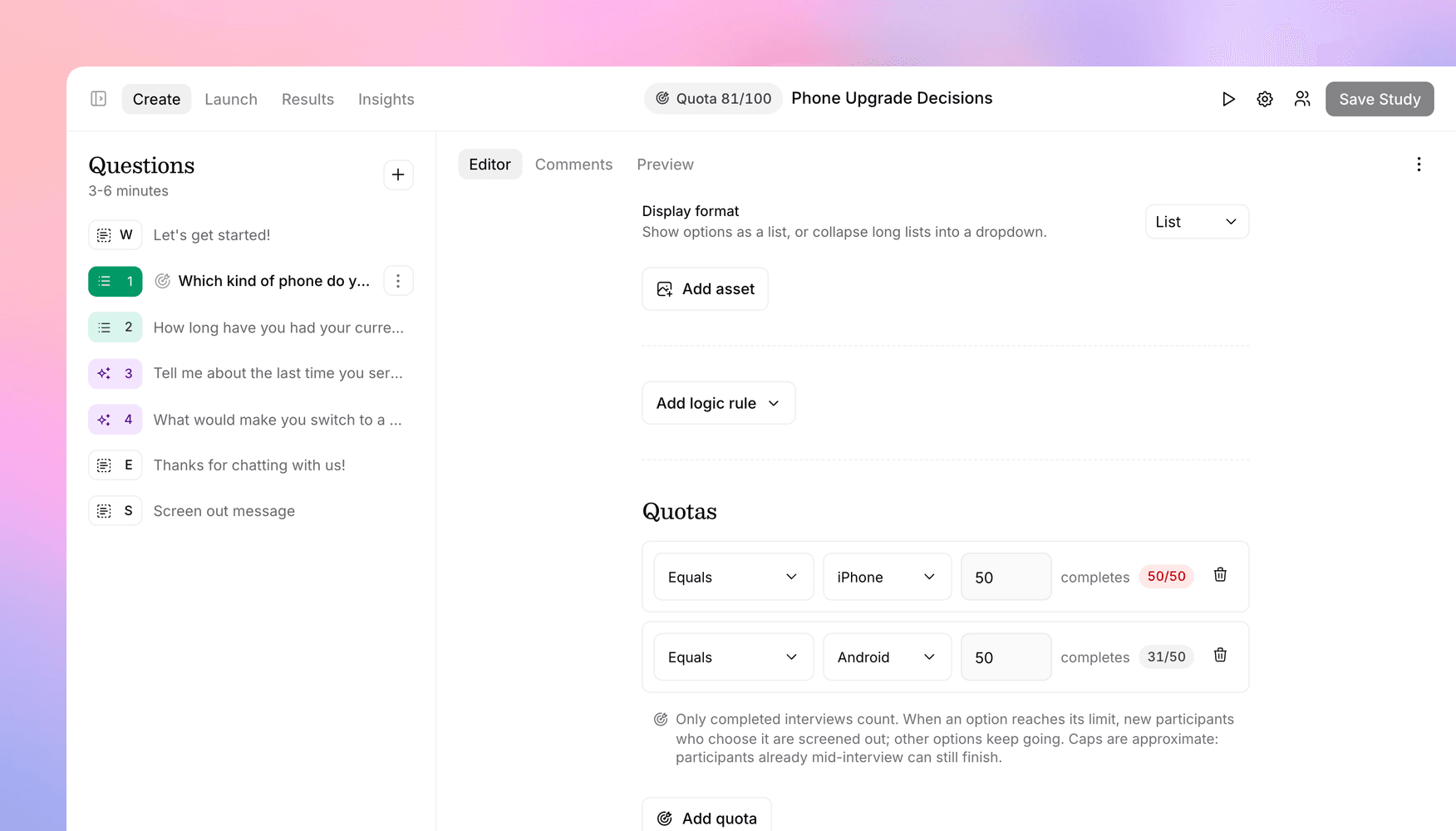
Cap a study at a total number of completes, set a separate cap for each recruiting link, or cap individual answers like 50 iPhone users and 50 Android users.
Most studies go into the field with a target: 100 completes, 30 from each customer segment, or 50 iPhone users and 50 Android users. Until now, hitting that target meant watching the dashboard and pausing the study at the right moment. Quotas handle it for you, at two levels.
Study quotas
A study quota stops the study from accepting new participants once you have enough completes. Set it under Sharing & participants in study settings, in one of two ways:
- Total completes: stop after a set number of completed interviews.
- Per link parameter: set a separate cap for each value of a URL parameter, so one study can fill several groups independently. Share
?group=1with one audience and?group=2with another, give each a cap of 30, and each closes on its own once it's full.
By default, participants whose link doesn't carry one of your values still get in (their completes just don't count toward any group). Turn on Require a matching value to turn them away instead. A quota pill in the study header shows progress at a glance, and participants who arrive after a quota is full see your paused-study page or your custom redirect, including a per-channel redirect if you use participant sources.
Question quotas
Sometimes the groups you need to fill are defined by an answer, not a link. Question quotas cap how many completes can choose a given option on a Multiple Choice question. Add them from the Quotas section of the question, below its logic: one row per option, with the number of completes you want.
When an option is full, the next participant who picks it is screened out right away and sent to your screen-out destination, while the other options keep accepting answers. Each row shows its progress as responses come in, and turns red once the option is full. Set a limit to 0 to close an option entirely.
On multi-select questions you can choose how an answer counts: Equals counts participants who picked only that option, and Includes counts anyone who picked it along with anything else. Matching works across languages, so a translated answer counts toward the same quota as the original.
Good to know
- Only completed interviews count. Screened-out and in-progress interviews, previews, and AI simulations never use up a slot.
- Caps are approximate. Anyone already mid-interview when a quota fills can still finish, so a study can land slightly over its target.
- Question quotas don't gate entry. Participants answer earlier questions before reaching a full option, so put quota questions early, alongside your screener.
- Study and question quotas are independent, and you can use both on the same study.
- Quotas work in every interview mode, including voice, and you can also set them through the API, the MCP server, or the AI assistant in the study editor.
The docs cover study quotas and question quotas in more detail.
Get in touch
We're continuing to build features that help you learn faster. If you have any questions or feature requests, reach out to us at [email protected]. Want to give it a try? Start a free trial and start running research in minutes.

Eric Li, Co-Founder, Versive